
Massachusetts State Police
Office of Alcohol Testing (OAT)
OAT eDiscovery Portal - Account Help
|
Massachusetts State Police Office of Alcohol Testing (OAT) OAT eDiscovery Portal - Account Help
|
Follow the instructions below to create an OAT eDiscovery Portal user account..
Click the Create User Account button from the Welcome page.

Enter the information in the Create User Account form and click the Submit button.
You will immediately receive two emails that you will use to activate your account. Follow these steps to activate your account.

In the “Account Activation – Temporary Password” email, you will find a Temporary Password. Please copy the password to the clipboard; you will need it for future steps.

Next, open the second email, titled Account Activation – Activation Code. Please click the log in link from the email.
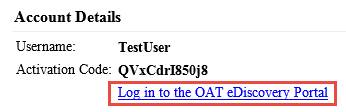
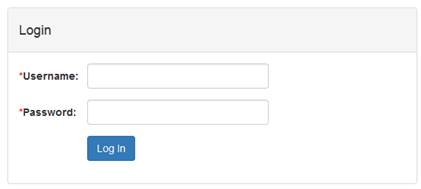
The log in link will direct you to the eDiscovery Portal log in page. Enter your username as well as the temporary passwords from “Step A” and click Log In.
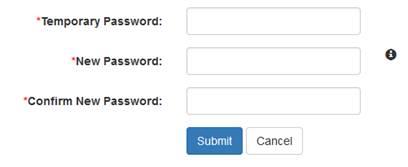
Once you have successfully entered your information, you will be prompted to change the temporary password to a permanent one. In the field titled “Temporary Password,” please enter the temporary password from “Step A.” In the subsequent fields, enter the password you wish to set for your account and click the Submit button.
Once you have set a new password, you will be directed to the activation page. Here, the activation code will be automatically filled in for you. If it isn’t, the activation code can be obtained from the “Account Activation – Activation Code” email.

Your account will now be activated. You should see the following message.

On the Welcome page, enter your Username and Password.
Click the Log In button.

If you have forgotten your username, please follow these steps to retrieve it.
On the Welcome page, click the Retrieve User Name link.

On the Retrieve Username page, enter the email address that is associated with your account and click the Submit button.

The system will send you an email that contains your username.
If you have forgotten your password, please follow these steps to reset your password.
On the Welcome page, click the Reset Password link.
On the Retrieve Password page, enter the username and email address that is associated with your account and click the Submit button.

The system will send you an email that contains a temporary password. Copy the temporary password to your clipboard and click the Log in to the OAT eDiscovery Portal link.
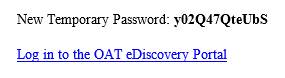
The link will direct you to the OAT eDiscovery Portal login page. Enter your username as well as the temporary password and click Log In.
Once you enter the username and temporary password, you will be prompted to change the temporary password to a permanent one. In the field titled “Temporary Password, please enter the temporary password. In the subsequent two fields, please enter the password you wish to set for your account and click Submit.
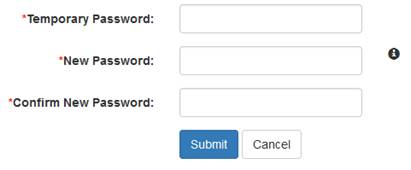
Your password will be changed and you will be directed to your account homepage.